CSS Anchor Positioning: No More JavaScript for Your Tooltips and Popovers
As a Design Engineer, you've probably written this function at least a dozen times: calculating the position of a tooltip, dropdown, or popover relative to its trigger element. You measure getBoundingClientRect(), handle window.resize, scroll, viewport edges, and end up shipping a 30kb library for three lines of visual logic.
There's a better way. CSS Anchor Positioning has arrived, and it changes everything.
Anchor Positioning is a set of CSS properties that lets you position an element (the anchored element) relative to another element (the anchor) — directly in the rendering engine. No more measuring the DOM in JavaScript. The browser handles positioning, resizing, scrolling, and even fallback strategies automatically.
The problem: the nightmare of absolute positioning
Take the classic case of a button with a tooltip. Before Anchor Positioning, here's what your mental model (and codebase) looked like:
// The infamous useTooltipPosition hook you copied across 3 projects
const useTooltipPosition = (triggerRef, tooltipRef) => {
  const [position, setPosition] = useState({ top: 0, left: 0 });

  useEffect(() => {
    const update = () => {
      const trigger = triggerRef.current?.getBoundingClientRect();
      const tooltip = tooltipRef.current?.getBoundingClientRect();
      if (!trigger || !tooltip) return;

      // Manual calculation, edge handling, scroll...
      setPosition({
        top: trigger.bottom + 8,
        left: trigger.left + trigger.width / 2 - tooltip.width / 2,
      });
    };

    update();
    window.addEventListener("resize", update);
    window.addEventListener("scroll", update, true);
    return () => {
      window.removeEventListener("resize", update);
      window.removeEventListener("scroll", update, true);
    };
  }, [triggerRef, tooltipRef]);

  return position;
};It's verbose, fragile, and doesn't even handle the case where the tooltip overflows the viewport. Now let's look at the CSS version.
The native solution: anchor() and position-area
1. The basic tooltip
The magic happens in two steps: declare the anchor, then position the anchored element.
<button class="trigger" popovertarget="my-tooltip">Click me</button>
<div id="my-tooltip" class="tooltip" popover>
  I'm positioned by the rendering engine!
</div>
.trigger {
  /* The trigger element becomes the anchor */
  anchor-name: --trigger-btn;
}

.tooltip {
  /* The tooltip is positioned relative to the anchor */
  position: absolute;
  position-anchor: --trigger-btn;

  /* Stick the bottom of the tooltip to the top of the anchor, horizontally centered */
  position-area: top;
  margin-bottom: 0.5rem;

  /* Smooth appearance animation */
  transition:
    opacity 0.2s ease,
    transform 0.2s ease;
}

/* Shown via the Popover API (zero JS) */
.tooltip:popover-open {
  opacity: 1;
  transform: translateY(0);
}

.tooltip {
  opacity: 0;
  transform: translateY(4px);
}The result? The browser calculates the position in real time. Resize, scroll, zoom — everything is handled natively. You've removed 40 lines of React for 6 lines of CSS.
2. The smart dropdown with position zones
position-area is extremely powerful. It uses a logical grid of 9 zones around the anchor.
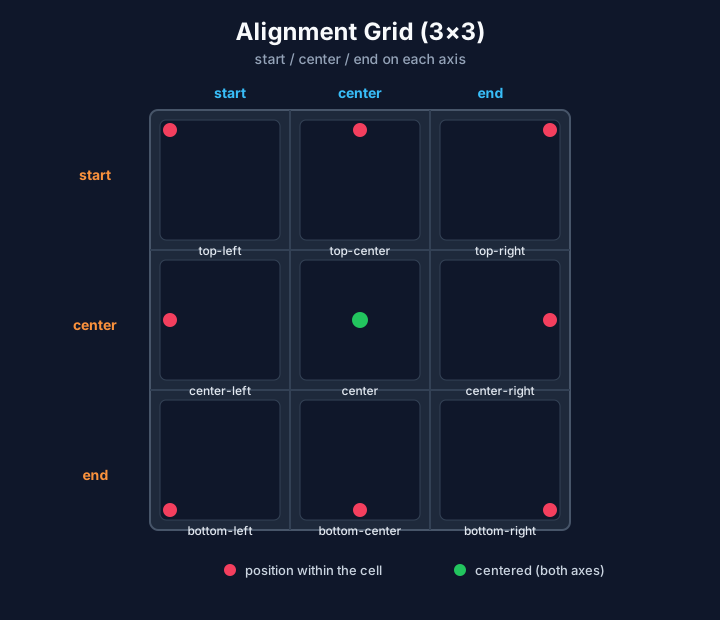
Here's a dropdown menu that opens at the bottom right by default:
.dropdown-trigger {
  anchor-name: --menu-trigger;
}

.dropdown-menu {
  position: absolute;
  position-anchor: --menu-trigger;
  position-area: bottom span-right;

  /* Aligns to the left edge of the anchor and extends to the right */
  justify-self: start;

  min-width: anchor-size(width);
  background: white;
  border: 1px solid var(--border);
  border-radius: 0.5rem;
  box-shadow: 0 10px 15px -3px rgb(0 0 0 / 0.1);
}
The anchor-size(width) property is particularly elegant: the dropdown automatically matches the width of the trigger button. No more measuring offsetWidth in JavaScript.
3. Handling overflow with position-try
The real game-changer is automatic handling of edge cases. If your tooltip doesn't have enough room at the top, you can define a fallback strategy:
.tooltip {
  position: absolute;
  position-anchor: --trigger-btn;
  position-area: top;

  /* Defines a set of positions to try */
  position-try-fallbacks: --bottom, --left, --right;
}

@position-try --bottom {
  position-area: bottom;
  margin-top: 0.5rem;
}

@position-try --left {
  position-area: left;
  margin-right: 0.5rem;
}

@position-try --right {
  position-area: right;
  margin-left: 0.5rem;
}The browser tries each position in order and picks the first one that fits within the viewport. You write zero collision-detection logic. The rendering engine takes care of it.
Integrating it into a Design System
In a modern design system, you can wrap all of this into utility classes or components. Here's an example with a Tailwind + custom CSS classes approach:
interface AnchorPopoverProps {
  anchorName: string;
  position?: "top" | "bottom" | "left" | "right";
  children: React.ReactNode;
}

export const AnchorPopover = ({
  anchorName,
  position = "top",
  children,
}: AnchorPopoverProps) => {
  return (
    <div
      popover
      className={cn(
        "absolute rounded-lg border bg-white p-4 shadow-lg",
        "transition-all duration-200 ease-out",
        "translate-y-1 opacity-0 [:popover-open]:translate-y-0 [:popover-open]:opacity-100",
        // Anchor positioning via style or CSS custom properties
        "[position-anchor:var(--anchor)] [position-area:var(--pos)]",
      )}
      style={
        {
          "--anchor": anchorName,
          "--pos": position,
        } as React.CSSProperties
      }
    >
      {children}
    </div>
  );
};And on the design system's global CSS side:
@layer components {
  .ds-anchor {
    anchor-name: var(--anchor-name);
  }

  .ds-anchored {
    position: absolute;
    position-anchor: var(--anchor);
    position-area: var(--pos, top);
    position-try-fallbacks: --flip;
  }

  @position-try --flip {
    position-area: bottom;
  }
}
What you actually gain
| Before (JS) | After (CSS Anchor) |
|---|---|
40-line usePopoverPosition hook | 3 CSS properties |
ResizeObserver + IntersectionObserver | Native position-try-fallbacks |
| Recalculation on every scroll frame | Handled by the browser's compositor |
Dependency on @floating-ui/react | Zero dependencies |
| Risk of visual layout shift | Atomic positioning at the rendering level |
When to use it (and when not to)
Use Anchor Positioning for:
- Tooltips, popovers, dropdowns
- Floating form labels
- Contextual info panels
- Any element positioned relative to another
Stick with JS for:
- Complex drag-and-drop interactions
- Custom trajectory animations
- Cases where you need positional data for other logic (e.g., drawing an SVG connector between two elements)
As of August 2026, Anchor Positioning is supported in Chrome/Edge and Safari.
Firefox is still implementing it. For internal design systems or Chrome-based
apps (Electron, Tauri), you can adopt it today. For general audiences, plan a
fallback to @floating-ui via CSS.supports('anchor-name: --test').
Conclusion
CSS Anchor Positioning is a perfect example of what the Design Engineer's job is really about: finding the sweet spot where native CSS technology replaces a complex JavaScript solution, while improving both performance and maintainability.
Your design system doesn't need a 30kb library to position a tooltip. It needs 6 lines of CSS and a modern browser. Let the rendering engine do what it was built to do.
Read Next